What Is DNS and How Does It Work? A, MX, CNAME and TTL Records Explained
 Mark Sullivan⏱ 10 min read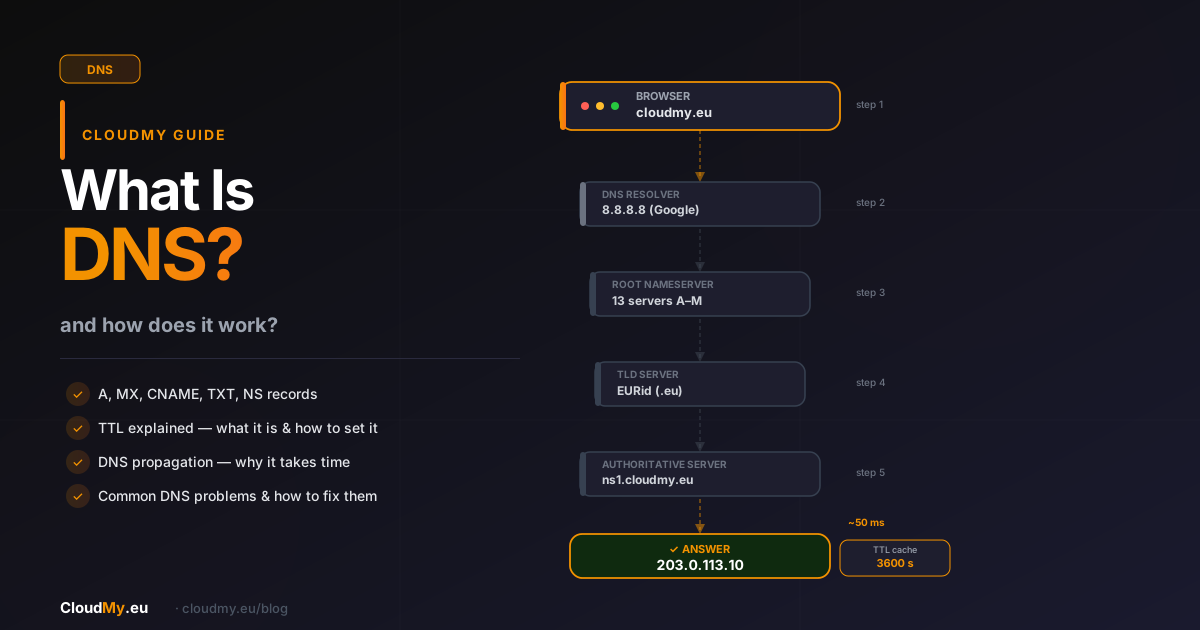
- What Is DNS?
- How Does DNS Work Step by Step?
- Step 1 – Browser and System Local Cache
- Step 2 – DNS Resolver (Recursive)
- Step 3 – Root Nameserver
- Step 4 – TLD Server
- Step 5 – Authoritative DNS Server
- DNS Record Types — What They Are and What They Do
- A Record – IPv4 Address
- AAAA Record – IPv6 Address
- CNAME Record – Domain Alias
- MX Record – Email
- TXT Record – Verification and SPF/DKIM
- NS Record – Nameservers
- SOA Record – Zone Information
- What Is TTL in DNS?
- How to Choose the Right TTL Value
- How to Check DNS Records for a Domain
- Online Tools
- Command Line
- Common DNS Problems and How to Fix Them
- Website Not Working After Changing Hosting
- Emails Not Arriving
- SSL Certificate Won't Issue
- Subdomain Not Working
- DNS and Security — What You Should Know
- Need a Domain or Hosting?
- FAQ
- What is DNS and what is it used for?
- How long does DNS propagation take?
- What is the difference between an A record and a CNAME?
- What is TTL in DNS?
- How do I check DNS records for my domain?
- Why doesn't my site work after changing hosting providers?
You type cloudmy.eu into your browser and the page loads in seconds. Sounds simple — but behind that single click is a complex mechanism working in the background in a fraction of a second. That mechanism is DNS, or the Domain Name System. In this guide, we explain exactly what DNS is, how it works, what the different types of DNS records are, and what the mysterious acronym TTL means.
What Is DNS?
The DNS (Domain Name System) is a global, distributed system of domain names — in simple terms: the "phone book" of the internet. Computers communicate with each other using IP addresses (for example 203.0.113.10), but humans prefer to remember words rather than strings of numbers. DNS solves this problem: it translates a human-readable domain name into the IP address where the server actually lives.
The DNS system was created in 1983 to replace a manually managed hosts file. Today it handles billions of queries per day and is one of the most important protocols on the internet. Without DNS, visiting any website would require typing a raw IP address.
How Does DNS Work Step by Step?
When you type a domain address, your browser launches a series of queries that typically take a few to a few dozen milliseconds. This process is called DNS resolution.
Step 1 – Browser and System Local Cache
The browser and operating system first check their own cache. If you visited this site recently and the DNS record hasn't expired (TTL hasn't elapsed), the answer comes directly from cache — no query is sent to a DNS server at all.
Step 2 – DNS Resolver (Recursive)
If the cache doesn't have the answer, the system sends a query to a DNS resolver — an intermediary server that does all the work. This is usually your internet service provider's (ISP) server or a public server like Google (8.8.8.8) or Cloudflare (1.1.1.1). The resolver checks its own cache and, if it doesn't have the answer, continues the search.
Step 3 – Root Nameserver
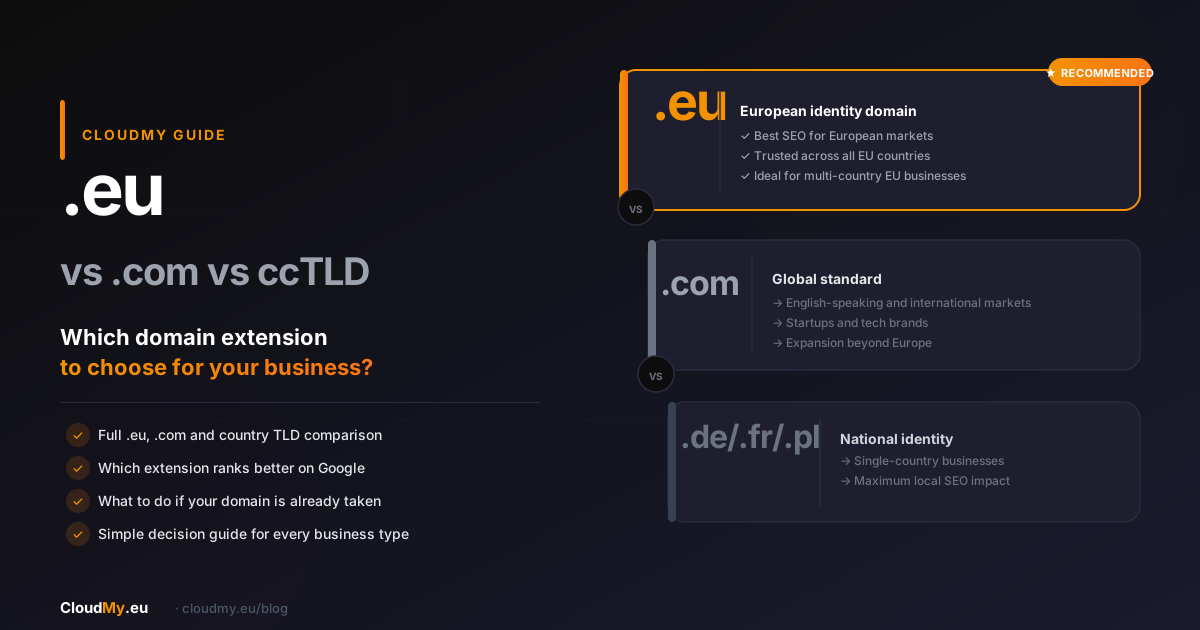
The resolver queries one of the 13 root nameservers (labeled A through M), distributed around the world. The root server doesn't know the domain's address, but knows who to ask about a given TLD — for example .eu, .com, or .fr (not sure which TLD to choose? See our guide on .eu vs .com — which domain extension to pick).
Step 4 – TLD Server
The TLD server (Top-Level Domain) is responsible for a given domain extension. For the domain cloudmy.eu, this is the EURid server managing .eu. The TLD server points to which authoritative server holds the records for that specific domain.
Step 5 – Authoritative DNS Server
The authoritative DNS server is the ultimate source of truth for a given domain. It stores all the DNS records configured by the domain owner. This is where the resolver finds the IP address and passes it back to the browser. The browser establishes a connection to the server — the page loads.
The entire process typically takes between 10 and 100 ms. After the first query, the result is cached for the duration specified by the TTL.
DNS Record Types — What They Are and What They Do
DNS records are entries in a domain's DNS zone that define various operational parameters. Each record type serves a different purpose.
A Record – IPv4 Address
The A record (Address) is the most important DNS record. It maps a domain name to an IPv4 server address. This is what makes cloudmy.eu "point" to a specific server.
| Name | Type | Value | TTL |
|---|---|---|---|
| yourbusiness.eu | A | 203.0.113.10 | 3600 |
| www.yourbusiness.eu | A | 203.0.113.10 | 3600 |
You can have multiple A records for the same name — this is called round-robin DNS, a simple method of distributing traffic across multiple servers.
AAAA Record – IPv6 Address
The AAAA record works identically to the A record but points to an IPv6 address (e.g. 2001:db8::1). IPv6 is the new generation of internet addressing, solving the problem of IPv4 address exhaustion.
CNAME Record – Domain Alias
The CNAME record (Canonical Name) creates an alias — it points one domain name to another domain name (not directly to an IP). It's especially useful when multiple subdomains need to point to the same server.
| Name | Type | Value | TTL |
|---|---|---|---|
| blog.yourbusiness.eu | CNAME | yourbusiness.eu | 3600 |
| shop.yourbusiness.eu | CNAME | yourbusiness.eu | 3600 |
Important rule: a CNAME record cannot be used for the root domain (apex domain, e.g. cloudmy.eu). For the root domain, always use an A record or ALIAS/ANAME (depending on your DNS panel).
MX Record – Email
The MX record (Mail Exchanger) determines which server is responsible for receiving email for a given domain. Without a properly configured MX record, email addressed to your domain simply won't arrive.
| Name | Type | Priority | Value | TTL |
|---|---|---|---|---|
| yourbusiness.eu | MX | 10 | mail.yourbusiness.eu | 3600 |
| yourbusiness.eu | MX | 20 | mail2.yourbusiness.eu | 3600 |
A lower priority number means higher priority — the server with priority 10 is used first. The backup server (20) handles mail if the primary is unavailable.
TXT Record – Verification and SPF/DKIM
The TXT record stores arbitrary text and serves many purposes: domain ownership verification (Google Search Console, SSL certificates), SPF policy configuration to protect against spam, DKIM keys for email authentication, and DMARC policy.
yourbusiness.eu TXT "v=spf1 include:_spf.yourbusiness.eu ~all"NS Record – Nameservers
The NS record (Name Server) indicates which authoritative servers hold the DNS zone for a domain. Changing NS records means changing your entire DNS provider — for example, moving management to Cloudflare.
SOA Record – Zone Information
The SOA record (Start of Authority) is the first record in every DNS zone. It contains administrative information: the primary nameserver, the administrator's email address, the zone serial number, and refresh parameters.
What Is TTL in DNS?
TTL (Time To Live) is the time (in seconds) that DNS servers and browsers store a record in cache. After the TTL expires, they must query the authoritative DNS server again for the current value.
How to Choose the Right TTL Value
- Short TTL (300–600 s) — recommended when planning an IP change or server migration. Changes propagate quickly — within 5–10 minutes.
- Long TTL (3600–86400 s) — recommended for stable, rarely-changed records. Reduces DNS response time and decreases server load.
- Strategy before migration: set TTL to 300 s 24–48 hours before the change. After migration, restore the higher TTL.
A common mistake is assuming that after changing a DNS record, the site will be immediately accessible. In reality, the old record may be cached by different users for the entire duration specified in the TTL. That's why DNS propagation can take anywhere from a few minutes to 48 hours.
How to Check DNS Records for a Domain
Online Tools
- MXToolbox – comprehensive MX, SPF, DKIM, blacklist checking
- DNSChecker – DNS propagation check across servers worldwide
- WhatsMyDNS – verify how a record looks from different global locations
Command Line
# Linux/macOS – check A record
dig cloudmy.eu A

# Linux/macOS – check MX records
dig cloudmy.eu MX

# Windows – check NS records
nslookup -type=NS cloudmy.eu

# Check TTL of a specific record
dig +ttl cloudmy.eu A
Common DNS Problems and How to Fix Them
Website Not Working After Changing Hosting
The most common cause is the old A record still in cache. Solution: wait for the TTL to expire or force a DNS cache flush on your computer (ipconfig /flushdns on Windows, sudo dscacheutil -flushcache on macOS).
Emails Not Arriving
Check your MX record using MXToolbox. Common mistakes: missing MX record, pointing to an IP instead of a hostname, wrong priority, or missing SPF record (which causes emails to be treated as spam).
SSL Certificate Won't Issue
The certificate authority verifies domain ownership via a TXT or A record. If DNS isn't yet propagated, verification will fail. Solution: wait for full DNS propagation and try again.
Subdomain Not Working
Check that an A or CNAME record exists for the subdomain. A common mistake is creating a CNAME chain (CNAME pointing to another CNAME) — not all servers handle this.
DNS and Security — What You Should Know
DNS, being the foundation of the internet, is also a target for attacks. The most dangerous is DNS spoofing (cache poisoning) — inserting fake DNS records that redirect users to malicious sites. The protection against this is DNSSEC (DNS Security Extensions), a protocol that digitally signs DNS records.
Additional security is provided by DNS over HTTPS (DoH) and DNS over TLS (DoT), which encrypt communication between the client and the DNS resolver, preventing eavesdropping by ISPs.
Need a Domain or Hosting?
Now that you understand how DNS works, you can manage your online presence with confidence. If you're just starting out — register your domain at CloudMy and configure DNS records in minutes from the control panel. Looking for hosting? Check out our web hosting with DirectAdmin and full DNS support included. Not sure which extension to choose? Read our guide on .eu vs .com — which domain to pick or find out why your business needs its own domain name.
FAQ
What is DNS and what is it used for?
DNS (Domain Name System) is a system that translates domain names (e.g. cloudmy.eu) into server IP addresses. Thanks to DNS, you don't need to remember numerical IP addresses — just type a readable domain name.
How long does DNS propagation take?
DNS propagation takes anywhere from a few minutes to 48 hours, depending on the TTL value of the previous record and how quickly DNS servers around the world refresh. With a TTL set to 300 seconds, changes are visible within minutes.
What is the difference between an A record and a CNAME?
An A record directly maps a domain name to an IP address. A CNAME record creates an alias — it points one domain name to another name (not to an IP). CNAME cannot be used for the root domain (apex), only for subdomains.
What is TTL in DNS?
TTL (Time To Live) is the time in seconds that a DNS record is stored in cache. After the TTL expires, DNS servers fetch the updated value from the authoritative server. A short TTL speeds up change propagation, a long TTL improves performance.
How do I check DNS records for my domain?
Check DNS records with online tools (MXToolbox, DNSChecker) or via command line: dig cloudmy.eu A (Linux/macOS) or nslookup cloudmy.eu (Windows). You'll see the current A, MX, TXT and other records.
Why doesn't my site work after changing hosting providers?
The old IP address may still be cached on DNS servers worldwide for the duration of the previous TTL. Flushing your local DNS cache (ipconfig /flushdns) speeds up the update on your computer, but full propagation takes time.