How to Transfer a Domain to Another Registrar — Step by Step
 Mark Sullivan⏱ 11 min read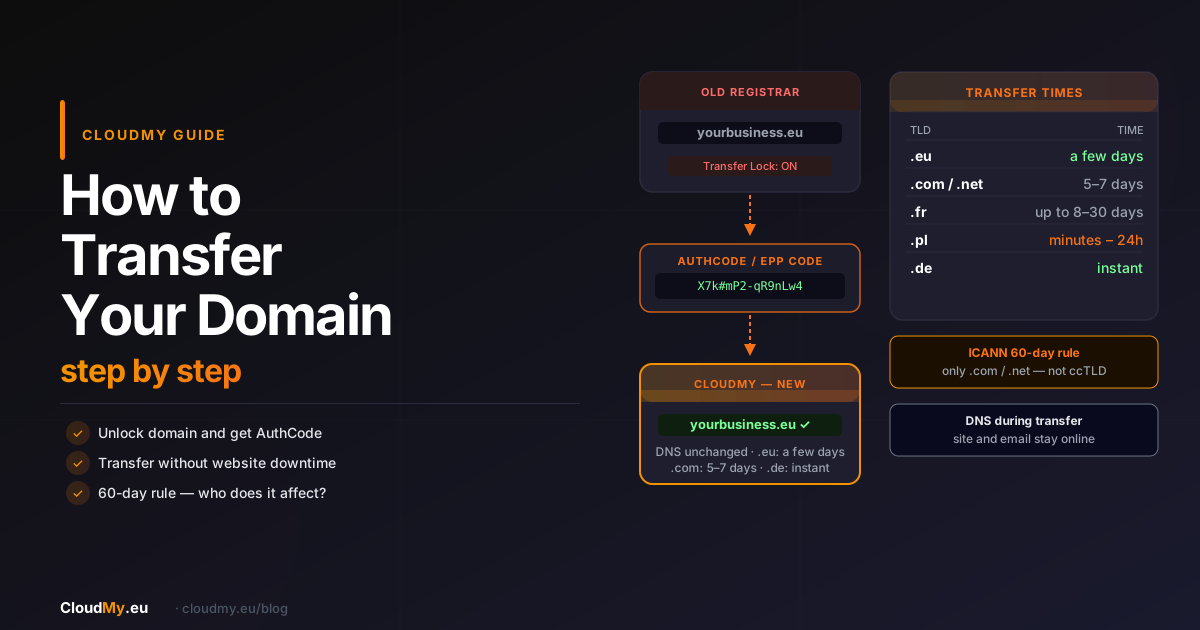
- When should you transfer your domain to another registrar?
- High renewal price
- Missing features
- Poor technical support
- Centralise everything in one place
- What you need to know before transferring — requirements
- The 60-day rule — only for .com and .net
- The domain must be active
- Access to the registrant's email address
- Domain transfer step by step
- Step 1 — Unlock your domain
- Step 2 — Obtain the authorisation code (AuthCode / EPP)
- Step 3 — Place the transfer order
- Step 4 — Confirm the transfer by email
- Step 5 — Wait for the transfer to complete
- Step 6 — Check DNS after the transfer
- Comparing transfer times for popular extensions
- Most common mistakes that delay or block the transfer
- Forgotten transfer lock
- Outdated registrant email address
- Expired or incorrect AuthCode
- Domain recently renewed
- What happens to your website and email during the transfer?
- Transfer and renewal — what happens to the expiry date?
- How to transfer a domain to CloudMy?
- FAQ
- Is domain transfer free?
- Can I cancel a domain transfer?
- What should I do if I don't have access to the registrant email?
- How long does a .eu domain transfer take?
- Do I need to change DNS servers during the transfer?
- Can I transfer a domain multiple times?
- Will transferring my domain affect my Google rankings?
Domain registrars differ in pricing, technical support, and features. If your current provider is letting you down — raising renewal prices, not offering free SSL, or providing a poor control panel — you have every right to transfer your domain to another registrar. This is a standard, legally regulated process that does not affect the operation of your website or email if carried out correctly.
This guide will walk you through every stage of the domain transfer — from unlocking the domain at your current registrar, through obtaining the AuthCode, to confirming the transfer and verifying DNS settings afterwards.
When should you transfer your domain to another registrar?
High renewal price
Many registrars offer the first year of domain registration at a very low price, then dramatically increase the renewal rate. If you received a renewal invoice that surprised you — it's a good time to compare alternatives. Transferring to a cheaper registrar often pays for itself within the first year.
Missing features
A good registrar should offer: WHOIS protection (registrant data privacy), an easy DNS panel, automatic renewal, and responsive customer support. If the provider also offers hosting, check whether free SSL is included — an SSL certificate is installed on the server, so a registrar without hosting cannot provide it directly. If basic management features are missing — check alternatives.
Poor technical support
Your domain is the foundation of your online presence. If your registrar doesn't respond to emails within 48 hours or doesn't have live chat, you risk losing customers when a serious problem arises.
Centralise everything in one place
Managing a domain at one provider and hosting at another means two control panels, two invoices, and two support teams. Moving your domain where your hosting already is simplifies administration and speeds up technical support.
What you need to know before transferring — requirements
The 60-day rule — only for .com and .net
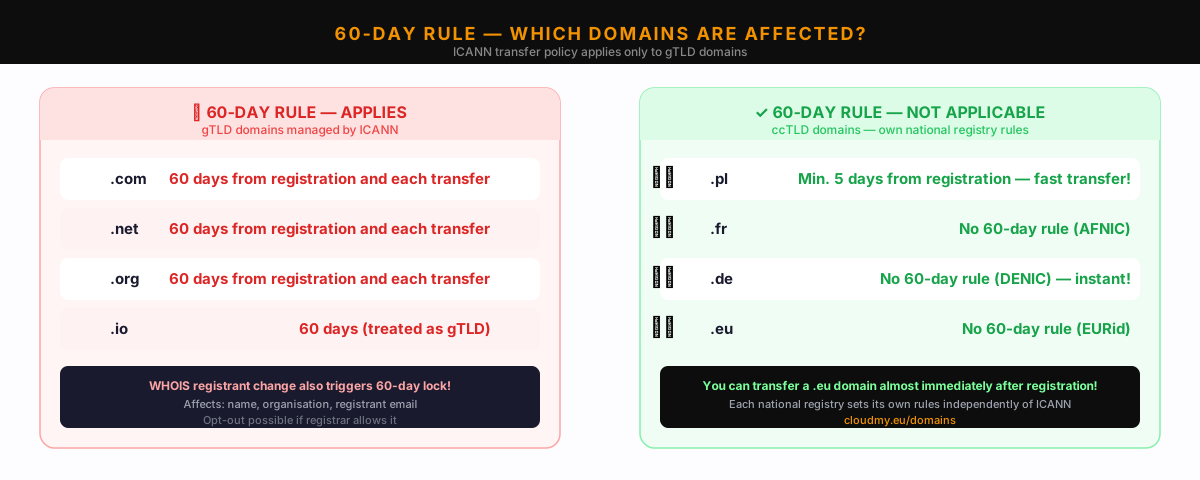
ICANN's transfer policy imposes a 60-day transfer lock on gTLD domains such as .com, .net, and .org. It applies in three situations: after a new registration, after each completed transfer, and after a change of registrant data.
Country-code domains (.eu, .fr, .pl, .de) are not subject to ICANN rules — each national registry sets its own policies independently. EURid (the .eu registry) does not impose a 60-day rule. In practice, you can transfer a .eu domain very shortly after registering it.
The domain must be active
An expired domain or one in the redemption phase cannot be transferred. A domain suspended by the registry (e.g. EURid for a policy violation) also blocks the transfer. However, a suspension set by your current registrar (e.g. for non-payment with them) does not block the transfer at registry level — you can transfer the domain to a new registrar who will handle the renewal. Make sure your domain has at least a few days of validity remaining.
Access to the registrant's email address
During the transfer, a confirmation email will be sent to the address associated with the domain. You must have access to it. If the address is outdated, update your contact details at your current registrar first.
Domain transfer step by step
Step 1 — Unlock your domain
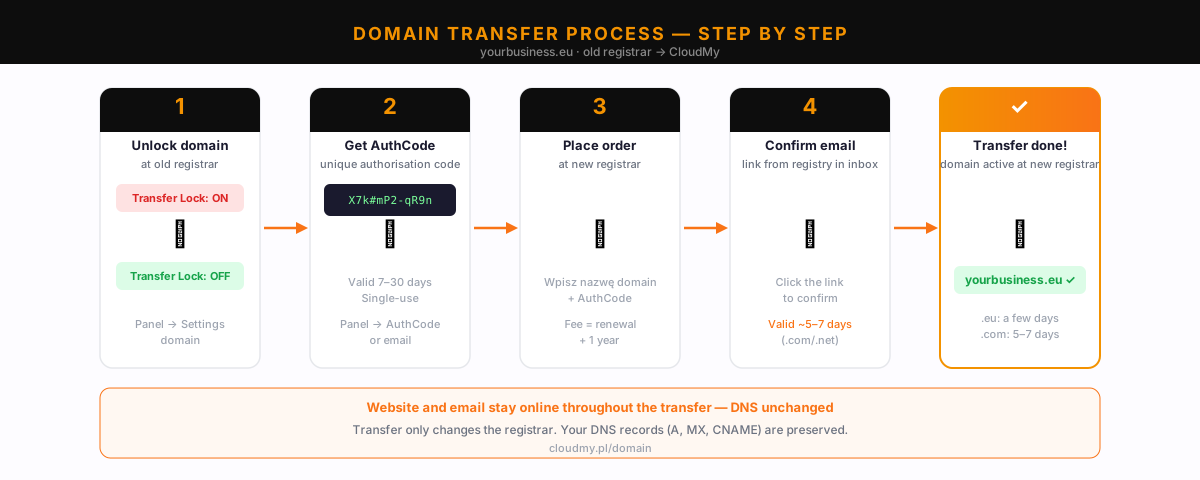
Domains have a transfer lock (also called registrar lock) enabled by default. This protects against unauthorised transfers, but you must disable it before initiating the transfer. Find this option in your domain management panel — usually in the "Security" or "Domain Settings" section.
After unlocking, wait a few minutes before proceeding — the change needs to propagate to the registry.
Step 2 — Obtain the authorisation code (AuthCode / EPP)
The authorisation code (also known as AuthCode, EPP code, or transfer key) is a unique string assigned to your domain. Without it, the new registrar cannot accept the transfer. How to get it:
- Log in to your current registrar's control panel
- Go to the domain details (e.g.
yourbusiness.eu) - Find the "Get AuthCode" or "Send EPP code" option
- The code will be displayed or sent to the registrant's email address
Note: The code is single-use and has a limited validity period (usually 7–30 days). Do not share it with anyone other than the new registrar you are transferring the domain to.
Step 3 — Place the transfer order
In the new registrar's panel, select the "Transfer domain" option. Enter the
domain name, e.g. yourbusiness.eu, then enter the AuthCode from
the previous step. The new registrar will verify the code and submit the
transfer request to the registry.
At this stage you usually pay the transfer fee (which covers a one-year extension). Keep your order confirmation.
Step 4 — Confirm the transfer by email
An email containing a confirmation link will be sent to the registrant's address. Click the link within the specified time (usually 5–7 days for .com/.net). If you don't confirm, the transfer will be cancelled automatically.
Your old registrar may also send you a notification about the transfer initiation — this is informational only; you don't need to do anything on their side (unless you want to cancel the transfer).
Step 5 — Wait for the transfer to complete
Transfer times vary by extension:
- .eu — typically a few days; TAC code valid for 40 days.
- .com / .net — typically 5–7 business days under ICANN policy.
- .fr — up to 8 days automatically; up to 30 days if the old registrar objects.
- .pl — a few minutes to 24 hours after email confirmation.
- .de — instant after AuthInfo verification by DENIC.
Step 6 — Check DNS after the transfer
The domain transfer only moves the administrative management of the domain — it does not change the DNS servers. Your website and email should continue working without interruption, as long as the new registrar hasn't automatically replaced your nameservers. Check the DNS settings in the new panel and compare them with your previous settings.
Learn more about DNS records in our article What is DNS and how does it work?
Comparing transfer times for popular extensions
| Extension | Registry | Transfer time | 60-day rule | Notes |
|---|---|---|---|---|
| .eu | EURid | a few days | Not applicable | TAC code (16 chars), valid 40 days |
| .com / .net | Verisign / ICANN | 5–7 days | Yes | 60 days from registration and each transfer |
| .fr | AFNIC | up to 8 days (auto), max 30 days | Not applicable | Old registrar may object within 8 days |
| .pl | NASK | minutes – 24h | Not applicable | After email confirmation; min. 5 days from registration |
| .de | DENIC | instant | Not applicable | Immediate after AuthInfo verification |
Most common mistakes that delay or block the transfer
Forgotten transfer lock
This is the most common mistake. The new registrar will reject the transfer request if the domain is still locked. Always check the lock status before placing your order and wait a few minutes after unlocking.
Outdated registrant email address
If the registrant's email is old, inactive, or deleted, you won't receive the transfer confirmation email. This information is stored at your current registrar — update your email address in your client portal before initiating the transfer.
Expired or incorrect AuthCode
AuthCodes have a limited validity (7–30 days depending on the registrar). If the transfer didn't go through immediately, return to your current registrar's panel and generate a new code. Also make sure you copy it without any extra spaces or characters.
Domain recently renewed
If you just paid for renewal at your old registrar and immediately try to transfer, the system may temporarily block the transfer. Wait 24–48 hours after renewal before initiating the transfer.
What happens to your website and email during the transfer?
Short answer: nothing bad, as long as you don't change the DNS. The domain transfer only changes which registrar manages the domain. DNS servers (and therefore your site's IP address and email MX records) remain unchanged.
Your site yourbusiness.eu will continue working throughout the
transfer. Email at [email protected] is also unaffected.
A disruption can only occur if the new registrar automatically overwrites your
nameservers — so always check DNS settings in the new panel after the transfer.
Learn more about how DNS records work in What is DNS and how does it work?, and why having your own domain matters in Why does your business need its own domain?
Transfer and renewal — what happens to the expiry date?
For gTLD domains governed by ICANN (.com, .net, .org), the transfer automatically extends the domain by 1 year from the current expiry date. So if your .com domain was expiring in 8 months, after the transfer it will be valid for 20 months. You pay the transfer fee once — the price typically covers this extension.
Exception — ccTLD domains (.eu, .fr, .de, .pl): national registries do not mandate automatic renewal upon transfer. The new registrar may include renewal in the transfer price, but is not required to. The expiry date may remain unchanged — check the new registrar's offer before ordering.
How to transfer a domain to CloudMy?
If you want to transfer your domain to CloudMy, the process takes just a few minutes on your side:
- Unlock your domain at your current registrar and get the AuthCode
- Go to Transfer your domain to CloudMy
- Enter your domain name and AuthCode
- Confirm your order — you will receive an email confirmation
- Click the confirmation link in the message from the registry
- Your domain will appear in your CloudMy panel within the timeframe indicated
By transferring your domain to CloudMy, you get free WHOIS protection and a DNS panel with full control over your records. Also check which domain extension to choose for your business — .eu, .com or country code.
FAQ
Is domain transfer free?
Domain transfer usually involves a fee similar to the annual renewal price at the new registrar. For gTLD domains (.com, .net), ICANN mandates a one-year extension as part of the transfer — so renewal is always included. For ccTLD domains (.eu, .fr, .de), renewal is not required by the registry — check what your new registrar includes in the transfer price.
Can I cancel a domain transfer?
Yes — as long as the transfer hasn't been completed, you can cancel it. At your old registrar you'll find a "Reject transfer" option, or you can simply not click the confirmation link in the email — the transfer will expire automatically. Cancellation after confirmation may not be possible.
What should I do if I don't have access to the registrant email?
You need to update the domain contact details at your current registrar. These are managed in your client portal — contact their support to update your email address.
How long does a .eu domain transfer take?
A .eu domain transfer typically takes a few days. EURid does not impose a 60-day waiting period. The TAC code (Transfer Authorisation Code) is valid for 40 days — once submitted, the new registrar cannot be blocked by EURid or the old registrar from completing the transfer.
Do I need to change DNS servers during the transfer?
No — and you generally shouldn't. The domain transfer does not automatically change your DNS servers. Your website and email work normally throughout the transfer. You only change DNS if you want to simultaneously move your hosting or record management to a new provider.
Can I transfer a domain multiple times?
Yes, there is no limit on the number of transfers. For .com/.net domains, the 60-day rule applies — you must wait 60 days from the last transfer. For .eu, .fr and .de domains, there is no such time restriction imposed by the national registries.
Will transferring my domain affect my Google rankings?
No — if DNS remains unchanged, Google won't notice the transfer. Your site runs on the same IP address with the same records. Search rankings are not tied to your registrar, only to your site's content and links. The transfer itself is SEO-neutral.